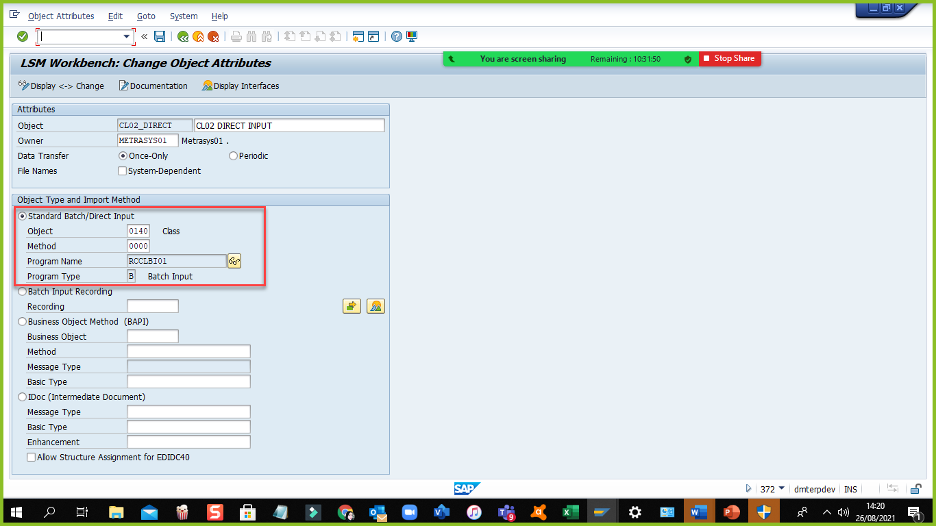
Jika muncul error pada LSMW ketika mencoba membuat Direct Input untuk tcode CL02, dengan Object 0140 Class :
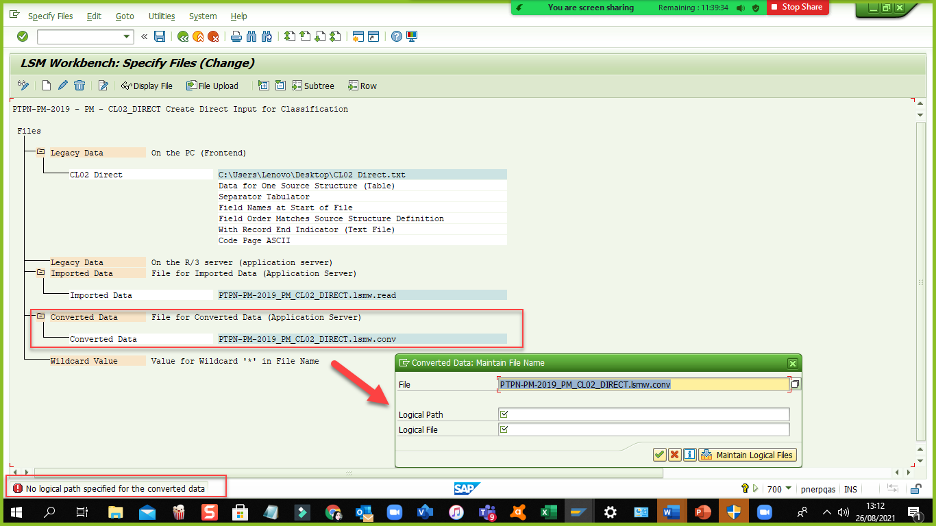
Maka untuk kebutuhan penggunaan Logical Path yang akan digunakan untuk transaksi LSMW-Direct Input pada tcode CL02 (Create class), Logical Patch dan Logical File menjadi wajib di isi ketika tcode CL02 digunakan. Dimana ini tidak terjadi pada tcode lain seperti create equipment (IE01), create funcloc (IL01). Ini disebabkan karena pada tcode CL02, memiliki 3 fitur dalam 1 tcode (create, change, display), yang artinya class tidak memiliki tcode yang berbeda untuk setiap kebutuhan create/change/display.
Sehingga untuk memfasilitasi kebutuhan ini, Logical Patch dan Logical File harus di maintain pada Logical File Path Definition (tcode FILE). Namun perlu diketahui bahwa tcode FILE ini merupakan table cross-client, sehingga akses ini tidak bisa dilakukan di QAS maupun PRD. Untuk bisa melakukan akses ini, harus dilakukan di DEV-Golden Client, karena data akan tersave pada Workbench transport. Oleh karena itu memaintain tcode FILE harus dilakukan di client dimana TR bisa di buat dan bisa melakukan modify cross client settings.
Berikut cara melakukan maintain FILE
Buka tcode FILE, Klik New Entries
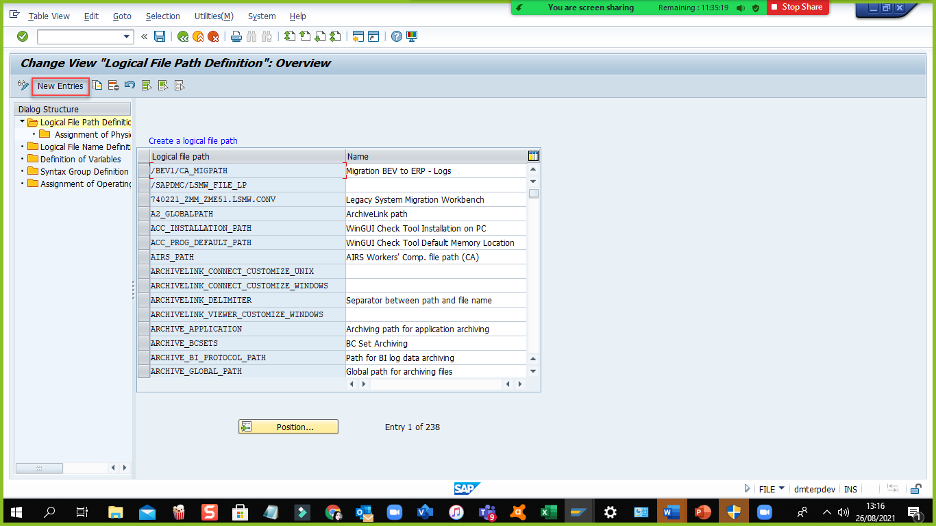
Enter an appropriate path name, up to 60 characters. The appropriate namespace for this entry includes names starting with Y or Z. Additionally, type a description for this new entry. Press enter or click the green checkmark to validate your new entry.
Logical path : ZPM_DMT_LogicalFilePath _CL02
Description : DMT Logical File Path CL02 Direct Input
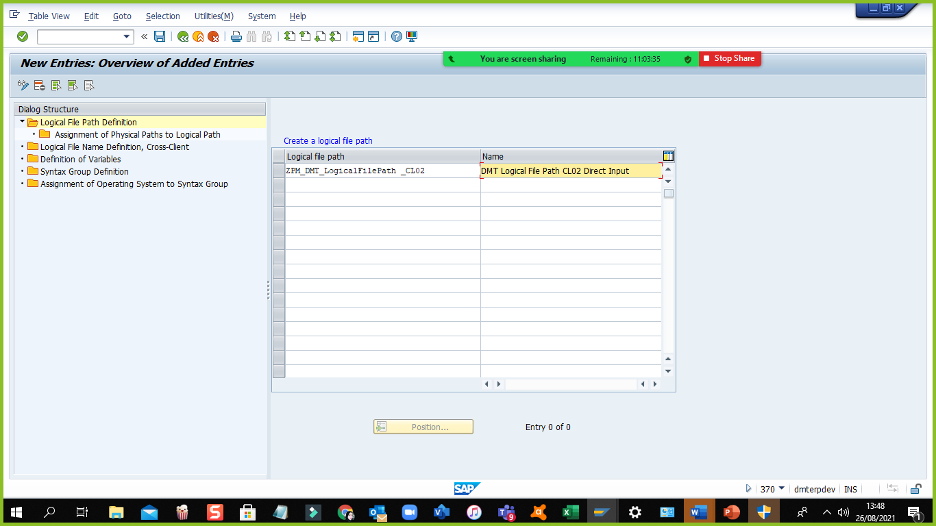
Highlight the new entry and double-click on the subfolder labeled “Assignment of Physical Paths to Logical Path”. In this section, you’ll assign a placeholder.

Klik new entries

I’ve always used the Syntax group “Unix”. Recognizing that I’ve always been in SAP environments where Unix was used, I cannot say if this is the only value that should ever be used. Looking at the dropdown, it is obvious that there are other possibilities. Use what is appropriate for your environment. For the Physical path, use <FILENAME>. Looking at the help for this field, you’ll find there are several other identifiers that could be added here. From my experience, this suffices.
Syntax group : UNIX
Physical path : <FILENAME>
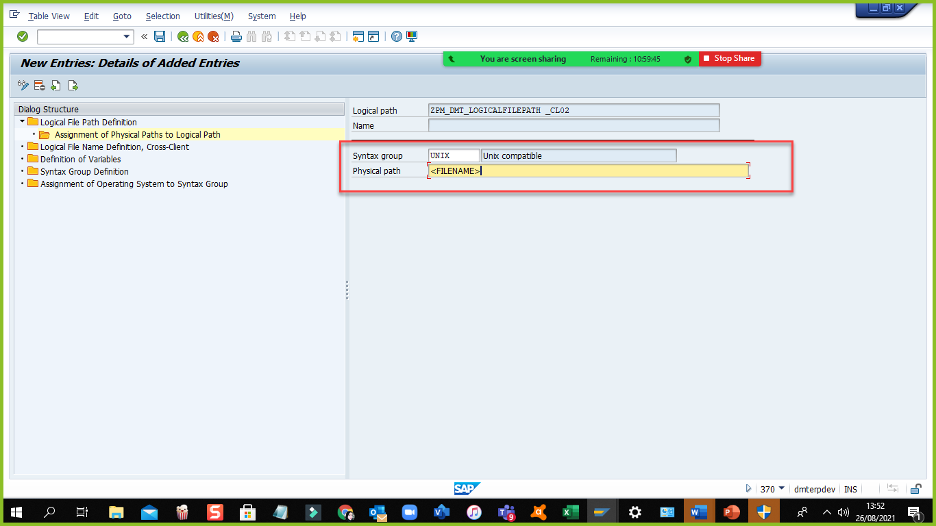
After validation, your new entry should look something like the screenshot above. The next step is to create the logical file which has a link to the logical path. In order to do that the path has to be recorded in the database – that is, you need to save first. Klik Save and TR will appear. Fill TR name
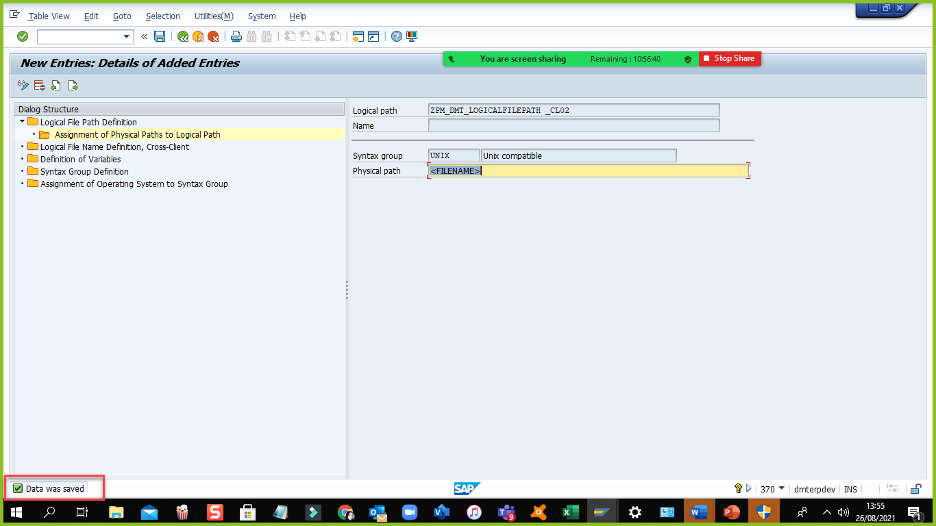
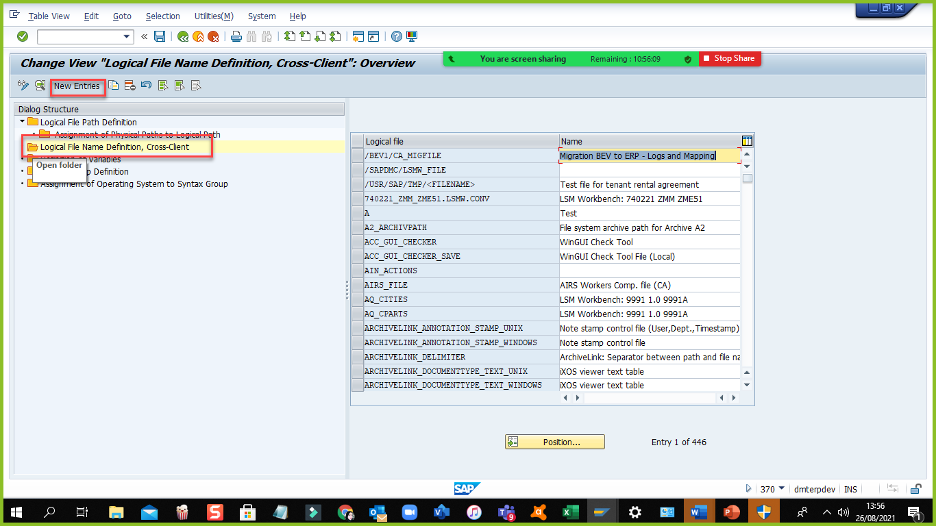
Once the logical path is saved, you can continue. Double-click on the folder labeled “Logical File Name Definition” and click on “New Entries”.
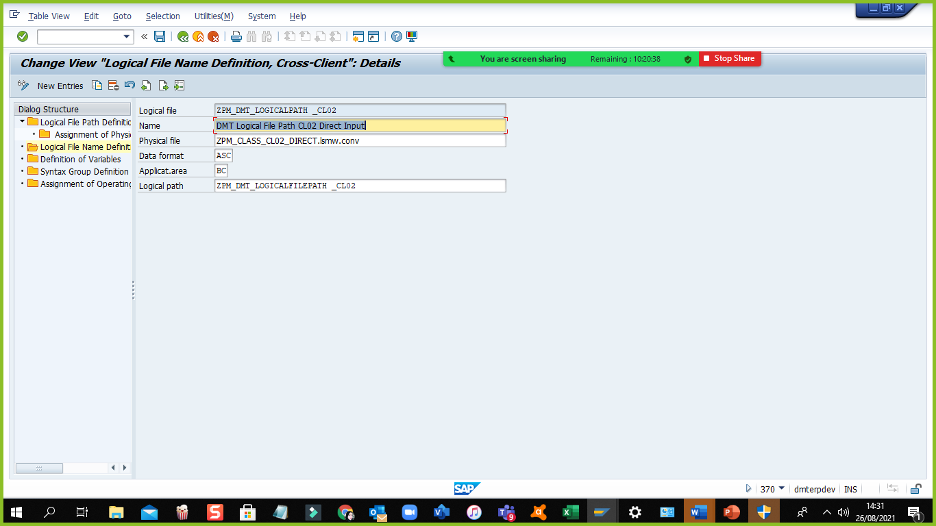
In the field Logical file, I use an identifier similar to the logical path above, replacing “PATH” with “FILE”. In Name, I use the same description as used in the logical path. In Physical file, you’ll need to use the file name that was mentioned above in the LSMW. In Data format and Applicat.area, I use the values ASC (ASCII data type) and BC (Basis Components/SAP NetWeaver), respectively. Finally, in Logical path, use the logical path identifier created above. You can see that there are dropdowns for the last three fields, but Physical file is free-form text. Be aware that there is no system validation on this field. Be certain that you use the same value in the LSMW.
Logical file : ZPM_DMT_LogicalPath _CL02
Name : DMT Logical File Path CL02 Direct Input
Physical file : ZPM_CLASS_CL02_DIRECT.lsmw.conv
Data format : ASC
Applicat.area : BC
Logical path : ZPM_DMT_LogicalFilePath _CL02
Above is the completed new entry after validation. Save again. If you did not leave the transaction between creation of the logical path and logical file, the system should store this new entry in the same transport request.
Buka LSMW dan isi dengan direct input
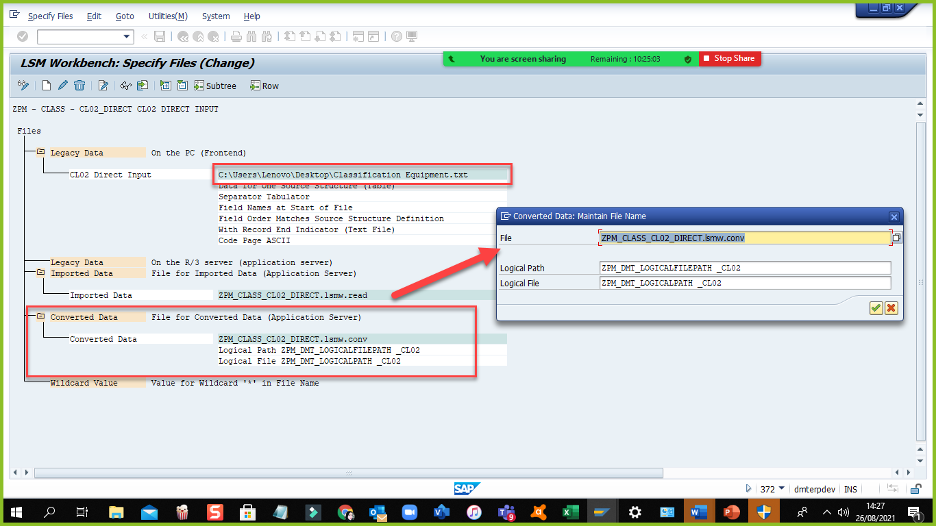
Lalu pada specify files isi dengan
Logical file : ZPM_DMT_LogicalPath _CL02
Logical path : ZPM_DMT_LogicalFilePath _CL02
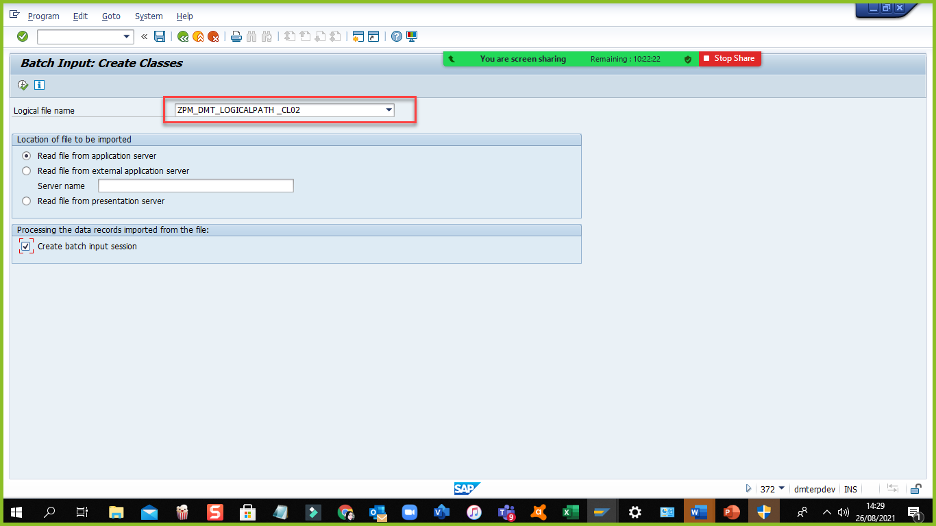
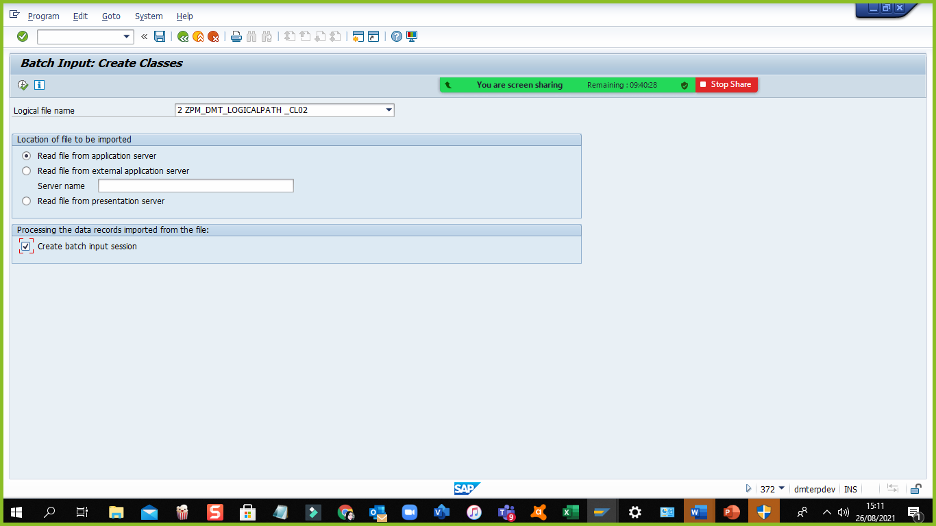
Pada batch input pastikan logical file sesuai
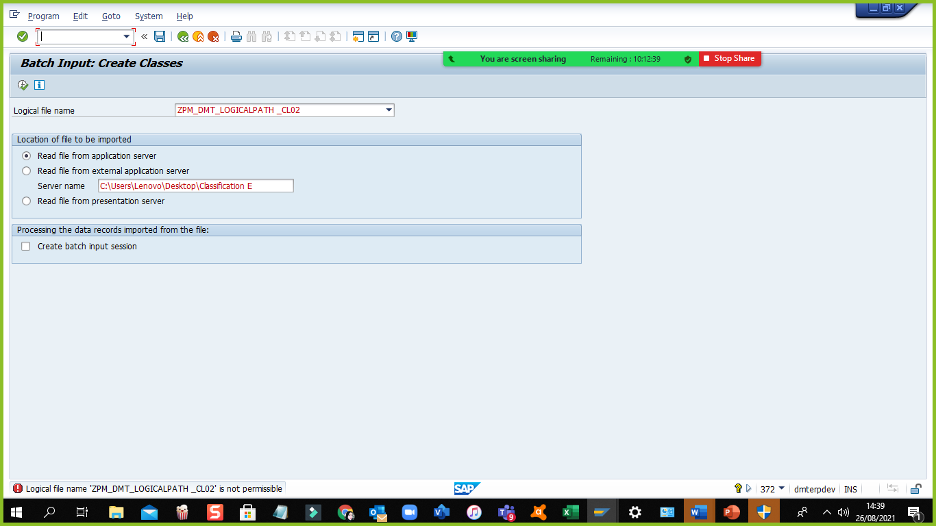
Jika muncul error
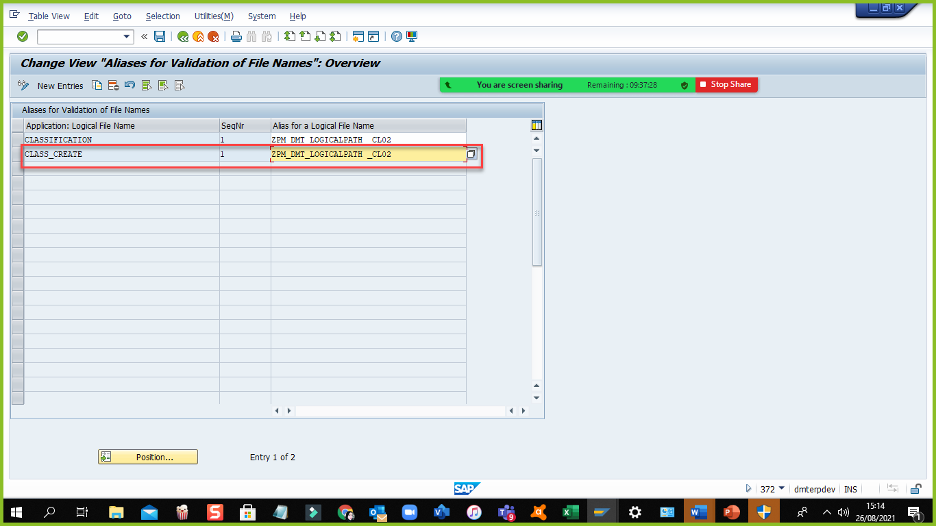
Buka T-code SM30
Table/View
press button Maintain, dan isi sesuai dengan gambar
Lalu ulangi lagi LSWM nya
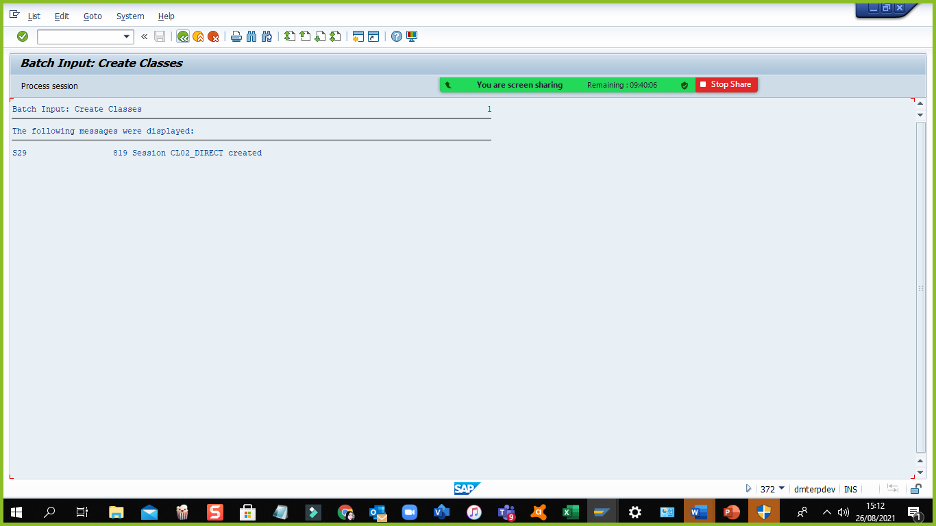
Sampai berhasil
REFERENCE : https://saptribalknowledge.wordpress.com/2011/07/13/create-logical-path-file-for-lsmw/
Semoga bermanfaaat 🙂
-Written by Lalitya Nindya Nareswari-
 SINAU SAP PM MODULE
Leave a comment